Friday, February 16, 2024

Teaching Beginning Communication with Inexpensive Single Buttons


If you’re reading this, you most likely know someone who is non-verbal or has very limited communication skills. They may communicate through grunts, pushing things away, or throwing that tantrum in the grocery store isle that seems to last waaaay too long. As a caregiver, therapist or teacher, our job is to replace those methods of communication with functional, socially appropriate communication that is understood even by unfamiliar listeners. Inexpensive, single button communication devices are a great way to begin this process.

Single button communication devices are portable and can be mounted on various surfaces. It’s easy to change recordings “on the fly”. Additional buttons can be added as the user’s skill level increases. Single button communications device prices vary from under $30 for the Talk About! Communication Button from Adaptive Tech Solutions to more advanced multi-level communications buttons like the Little Step-by-Step with levels from AbleNet.

For beginning users, how do you choose a message to teach single switch communication device use? Think of the most motivating, meaningful activity for the user. Make sure it is something they love, love, love! It could be something like “I want chocolate milk” or “I want to go outside and play”. Place a picture or representational object on the button, record your message, and make the button available for the user. Don’t give them the desired activity or thing unless they press the button. When first starting out, you may have to place their hand on the button, let the button speak, and then say “Oh, you want ______.” and then give it to them immediately. Don’t offer a choice that isn’t realistic. If it’s 20 degrees outside, don’t give them a button that says “I want to go outside and play.”

Some users understand pictures, others may need representational objects or to have one of these paired up with the location of the button. For instance, a beginning user may not quite understand that a photo of the playground represents going outside to play. But, put that picture on it and mount the button next to the door that leads to the playground. Every time you are going to the playground, have them touch the button that says “I want to go to the playground” (or provide hand-over-hand if they don’t initiate pushing the button on their own). Once that button is pressed and it speaks, take them right to the playground.
visit here: https://www.adaptivetechsolutions.com/blog/teaching-beginning-communication-with-inexpensive-single-buttons-/


Wednesday, December 27, 2023

Ideas for Using Inexpensive Single Output Communication Buttons


So, you've bought one or more single output communication buttons. Here's some ideas on how to use them!

  • Record the Happy Birthday Song so the user can sing to someone on their special day.
  • Place 2 buttons on the fridge. On one, put a picture that represents drinking, on the other put a picture that represents eating.
  • Record a portion of your morning circle time routine. Let the user press the switch to say their part in the morning routine.
  • Add pictures that represent the steps for an activity. Record the instructions for that step on each of the buttons.
  • Record a count down "3-2-1!" so the switch user can count down an event such as letting a balloon go, or sending up a toy rocket.
  • Give the user only a small portion of their snack, Record "I want more" on their button and let them user ask for more snack.
  • In the morning, record something special for your child to tell their teacher. Have the teacher record a message at the end of the day. Let the student push the button to share the messages.
  • Pick a book with a repeating phrase. Record the phrase and let the child press their button to read the phrase when it comes up in the book.
  • Record "Read the next page" so they can tell you when they are ready to have you read more of a story.
  • Record a line from the school play so the child can have their turn at saying their line on stage.
  • Pick a movie, then record "I would like a ticket to ______". Let the user press their switch at the box office to buy their own ticket.
  • Decide food and drink choices before the waiter comes to take your order. Record the choices on the communication button so the user can order their own meal.
  • Record a prayer for bedtime or dinnertime recitation.
  • Record "It's my turn", "It's your turn", "No cheating" for use during game play.
  • Record "Do you have anything for me to take to the office?" so the user can go around to the classrooms and retrieve items to take to the school office.
  • Record "Do you have any shredding?" so the user can collect documents to shred from co-workers.
  • Add a button by the toilet that says "I'm finished."
  • Record "I need help". Use it in a variety of situations to reduce frustration.
  • Record "I want some attention" so the user can press their switch to ask for attention (instead of screaming!)
  • Record "Yummy" on one button and "Yucky" on another before trying a new food or drink.
  • Record "I want something different". Use it to ask for different tv shows, different music, a different toy,...

Adaptive Tech Solutions is a therapist owned and operated company and we strive to provide adapted equipment for individuals with disabilities at affordable prices. Our owner, Denise, has been a Speech-Language Pathologist and Assistive Technology Professional for over 30 years. She still actively works with folks with disabilities in her private practice and is happy to assist customers with product selection and in finding solutions to special situations. She also hand picks all the products we carry in our store and has the expertise to correctly advise how to use adaptive products.

For more information about Disabled Call Button and visit here:

https://www.adaptivetechsolutions.com/blog/ideas-for-using-inexpensive-single-output-communication-buttons/

Thursday, December 14, 2023

SoundingBoard help for "Error: Record Permission is required


For those of you who are getting the error message in SoundingBoard that says "Error: Record Permission is required." Here are some tips that generally fix this issue.

Please make sure you have the latest iOS version and the latest SoundingBoard version. To see if these are up to date, do the following:

Go to “Settings” on your iPad, then on the page titled “General”, click “Software Update”. It will check for updates and alert you if you need to update to the latest version.

Once you have completed this step, go to the AppStore, click “Updates” located at the bottom of the screen. Scroll through the listings to see if SoundingBoard is there with “Update” next to it. Or, if you are not one to update your apps on a regular basis and have a long list to go through, you can search for the app. In the search box located in the upper right hand corner type “SoundingBoard” (without quotes). It will then search for that application. Once it is located it will either have a button to open the app or to update the app. Obviously, if it says update, you need to click on it and update the app!

You will continue to have glitches unless these are updated. Once this is done, please do the following:

Go to Settings on your iPad

Select “General”

Select “Restrictions” then either enter your pass code or select Enable Restrictions at the top of the right column if you have not enabled restrictions already. It will prompt you to enter a pass code, then re-enter it again.

Select Microphoneand locate SoundingBoard in the app list Ensure the slider is set so it is green next to the SoundingBoard app. Then close out the settings and try the SoundingBoard app again.

We hope you have found this free information to be helpful.

At Adaptive Tech Solutions, we are more than just a vendor of adaptive equipment. We want to empower individuals and provide information that makes individuals with disabilities more independent. As such, we offer a list of free or low cost communication software for the iPad, iTouch, iPod and other devices. This information can be located on our website atcommunication_apps_for_the_ipad_and_iphone2.cfm .

Save money on adapted equipment at http://www.adaptivetechsolutions.com . We offer switch adapted toys, low tech communication devices, caregiver alerts, switches and more.


Tuesday, December 12, 2023

Assistive Technology and Cerebral Palsy


Cerebral Palsy, the most common motor disorder, can make it difficult for people to interact with their environment. Through the use of assistive technology, such as  switches and switch adapted toys/devices, people with Cerebral Palsy can independently interact with their environment. Switches are buttons, levers, or sensors that can be activated with any part of the body. Switches vary in how much pressure is required to activate them. So, a person with very limited motor movements might do better with a Micro Switch, whereas a person with big, less controlled motor movements would do best with a large durable switch such as the Big Red Switch. Also, the body part being used to press the switch needs to be selected based on movements that are the most accurate, controlled, and consistent.

Individuals with Cerebral Palsy also often have speech disorders. For individuals with a significant speech impairment, they may not be easily understood by others. Through the use of communication devices (sometimes called talking boxes or talking buttons), people with speech impairments can communicate with others. There are a wide variety of communication devices ranging from single message output devices such as the Talk About!, to more advanced devices with multiple messages/topic pages such as the SuperTalker, and high tech devices such as those offered by companies that specialize in speech generating devices, such as Tobii Dynavox and PRC. Some individuals who aren't quite ready for these devices might benefit from a low tech system such as the Talk n Tote Board, a portable communication board that can have pictures and objects attached. 

Adaptive Tech Solutions, a therapist owned company, offers a wide variety of switches and switch adapted toys/devices to promote independence in people with disabilities such as Cerebral Palsy.

Adaptive Tech Solutions is a therapist owned and operated company and we strive to provide adapted equipment for individuals with disabilities at affordable prices. Our owner, Denise, has been a Speech-Language Pathologist and Assistive Technology Professional for over 30 years. She still actively works with folks with disabilities in her private practice and is happy to assist customers with product selection and in finding solutions to special situations. She also hand picks all the products we carry in our store and has the expertise to correctly advise how to use adaptive products.

Unlike some of our competitors, with our switch adaptation service, nearly all our products are adapted to be used both with or without a switch. This means you get more for your money since the toys can be used with individuals with disabilities, and able-bodied individuals, too. These products are perfect for classroom, daycare, and other settings where disabled and non-disabled peers play together. 

For more information about Switch Toys For Special Needs  and visit here:

https://www.adaptivetechsolutions.com/blog/assistive-technology-and-cerebral-palsy/


Monday, November 27, 2023

AAC Devices @ Adaptivetechsolutions.com Provides Multiple Ways to Communicate


Augmentative and Alternative Communication - AAC is useful for individuals having some kind of speech and communication difficulties. They cannot rely on their speech and thus AAC devices incorporate the individual's full communication abilities. Usually AAC devices encompass existing speech or vocalizations, gestures, manual signs, and aided communication. Adaptive Tech Solutions offers augmentative and alternative communication devices that are truly multimodal, permitting individuals to use every mode possible to communicate.

Adaptive Tech Solutions offer a full assortment of educational toys, switch mounts, switches, and speech therapy products for special needs individuals. They also offer special needs toys specially customized to allow individuals with physical disabilities the chance to play and learn as easily as possible.

Communication devices, such as those offered at Adaptive Tech Solutions, are often referred to as voice boxes, talking boxes, voice machines, voice buttons, talking buttons and speech devices.

One of the many happy customers at Adaptive Tech Solutions, Audrey S. (United States) says, “Great source for people with disabilities and awesome products.”

According to the website spokesperson at Adaptive Tech Solutions, AAC devices are all-encompassing, she says, “Regardless of what you call them, they are devices that help people with poor speech or no speech communicate their wants and needs.”

Alternative communication devices are significant tools for users facing difficulty communicating via speech due to congenital and/or acquired disabilities occurring across the lifespan.

Adaptive Tech Solutions offers multiple Alternative Communication Devices including:

  • Talkbook Four
  • StepPad
  • Big Button
  • Picture Cue Cards
  • GoTalk Duo
  • GoTalk 4+ Lite Touch
  • Vinyl picture pockets
  • Talk n Tote Boards

One of the most popular AAC devices at Adaptive Tech Solutions is the GoTalk Fit, a portable communication device with keypad cover and levels. It is an easy-to-use 4 or 9 message voice output device. Activate the easy on/off switch and begin to record messages on each of 3 levels for a total of 12 or 27 messages in this small handheld device. It is a powerful communication device that's hand-held for quick access. It is an amazing tool for students to use in school. Moreover, the GoTalk Fit is a nice, basic communication device for individuals who have communication impairments from strokes or other ailments and need a very basic device to put in their pocket or on a device lanyard for quick communication interaction.

About Adaptive Tech Solutions

Adaptive Tech Solutions is a therapist owned and operated company offering best performing technology and solutions for various disabilities. They offer a complete line of affordable assistive technology devices and special needs tools to help kids and adults with disabilities.

Wednesday, November 15, 2023

Taking the Confusion Out Of Assistive Technology


What is a switch adapted toy/device and who would use it?

If a person has an inability to use their hands to push buttons or manipulate toys, then those items need to be adapted so a switch can be plugged into them. A switch is a button, lever or device that senses movement. These allow people with disabilities larger buttons to push, or in some cases even sensitive levers or sensors that recognize very small movements. Some users activate these switches with their hands, some with their heads, knees, feet, or other body parts that they can consistently move.

Toys or devices, such as caregiver alerts, that have been modified electronically to let you plug the switch into it. Then when the switch is pressed, the toy or device will begin working. Depending on the toy or device, some will work only when the switch is pressed, and some will continue working for a limited amount of time after the switch has been released. (These are usually toys that play through a song before stopping.)

Switches:

Switches come in a variety of styles, sizes, and colors. We happen to carry several styles of switches. Usually the choice of switch is dependent on the user and the circumstance of the use. Brightly colored switches are best for individuals with limited attention, CVI, or visual impairments. For users with poor motor skills who can’t accurately locate a smaller target area, try a switch with a larger surface area such as the Big Mack. If fine motor skills are intact, you can look at a switch with a smaller surface area. Our Switch It Up! is perfect for switch users with adequate ability to locate a 3” surface and apply a moderate amount of pressure. For individuals with extremely limited movement (such as SMA, ALS) try a micro switch such as our Micro Switch or Micro Light. Some switch users can’t use their hands. So, other switch placements must be explored. There are chin switches, pillow switches (which are great for head activations, especially while in bed), and many other switch types. If you have a special situation and can’t decide which switch would be best, contact us for assistance. Below are some examples of switches.

Switch Adapted toys or devices:

These are toys or devices that have been adapted to allow a switch to be plugged into them. Nearly all of our toys or devices are already adapted to accept a switch. They are designated by this symbol:  The few that aren't adapted will be listed as such on our site. Some toys only play while the switch is being activated, while others will allow the user to press and release their switch to activate the toy for a short duration before it stops on its own. Since each toy is different, we try to give information in the description of the toy and also provide videos of most toys. In the videos, you will see the switch either being pressed and held, or pressed and released to make the toy "go". 

Interfaces that go between a switch and a toy/device allow a user press and release their switch to keep the toy "going" once they release their switch. This is called latching. Or, you can set it to timer mode where once the user presses and releases their switch, the toy will continue to activate for a preset period of time (as set by the interface). For battery operated toys, this interface is a Switch, Latch, Timer (SLAT). For items that plug in, the interface would be the Powerlink. These interfaces do not work with toys that go for a short duration on their own (i.e., recite a song or story, or otherwise 'go' even after the switch has been released) and they do not work with items such as CD players.

Battery interrupters:

Battery interrupters allow the adaption of a battery operated toy to be easily adapted to use a switch. Simply insert our battery interrupter between "AA", "AAA", "C", or "D" batteries and make most items switch activated. This is a great option if you have a favorite toy or vocational-related device that needs to be adapted. They work with devices that have an on/off switch. and do not required the pressing of a button, squeezing or remote controlled. Choose the size based on the battery size your device uses.

For more information about Switch Toys For Special Needs and visit Adaptive Tech Solutions


Thursday, November 9, 2023

Computer Adaptations for People with Parkinson’s Disease


According to the National Parkinson’s Foundation, Parkinson’s Is second only to Alzheimer's as the most prevalent neurodegenerative disease in the United States. A diagnosis of Parkinson’s can lead to frustrating experiences while typing or using a computer mouse. There are, however, some adaptations and accessibility settings that can make these tasks much easier. These same accommodations can benefit those with tremors and diseases such as MS.

Keyboard Control

A common symptom of Parkinson’s is uncontrollable tremors. This results in extra keystrokes and difficulty with mouse control. In Windows, turning the Bounce Key function on will help to control the number of keystrokes made  when keys are pressed. This can be accomplished on Windows 7 or later by:

  • simultaneously clicking the ‘Windows logo Key’ + ‘U’ to reach the Ease of Access Center. (Or search ‘Ease of Access’ in the search bar.)
  • Selecting “Make the keyboard easier to use” under Explore All Settings.
  • Then selecting Turn Filter Keys on and choosing the options that you feel will best assist you with keyboard input.

Additional PC accessibility functions can be found here.

For Mac users, go to the accessibility settings to enable similar features such as Slow Keys. Find more details here and check out software that steadies the mouse and locks it onto targets, such as SteadyMouse.

Individuals with Parkinson’s may benefit from a keyboard with larger keys. Keyboards like the BigBlu Kinderboard Large Key Keyboard and the VisionBoard Large Key Wireless Keyboard have large 1” keys that make typing easier.

Both Mac and PC users can use their voice to navigate around their computer and type, too.

Mouse Control

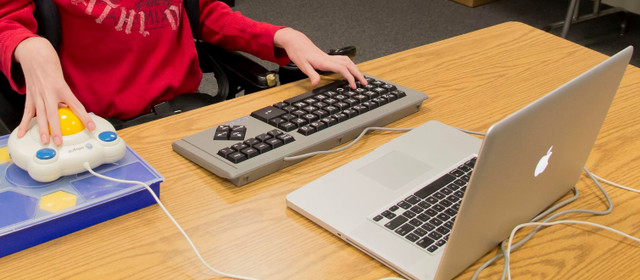
Mouse use can also be challenging for individuals with tremors. Using a large trackball mouse such as the Bigtrack Ball Mouse and adjusting mouse speed in your computer's settings can make mouse use much easier. Another option is to use Mouse Keys (again, a setting on your computer). This allows the cursor to be moved using the up and down arrows on the keyboard. And for individuals that choose to use mouse or mouse key input, consider using your computer's On Screen Keyboard instead of an actual keyboard. Additionally, try the free demo of Steady Mouse software to steady your mouse movements.

Individuals that have difficulty with mouse clicks can use a mouse with larger buttons, like the Bigtrack Ball Mouse shown below. It is available in a wireless version, too. Or they can use dwell click software that automatically clicks if the cursor is held in a location for a preset amount of time. Check out Dwell Clicker 2 for Windows or Dwell Click for Mac for this functionality.

For more information about Adaptive Computer Mouse and Handicapped Assistive Devices visit here Adaptive Tech Solutions

Nite Brite Cuddles

Nite Brite Cuddles is an adorable plush bear that has been switch adapted to accept a standard 3.5mm switch (sold separately). Press and rel...